Ask for a change
1
Open Ask AI
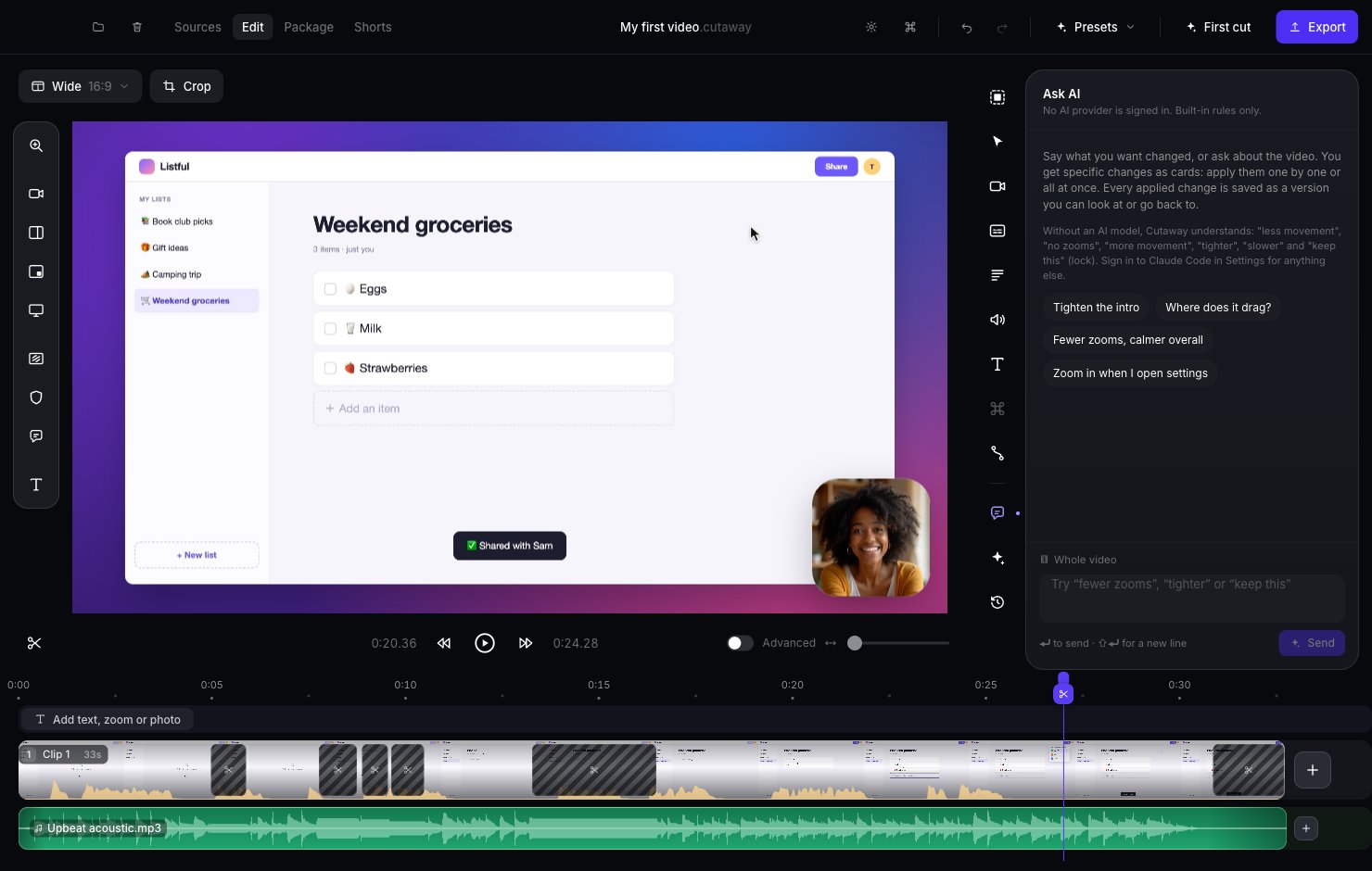
Click the speech bubble in the right sidebar, or press Command + 9.
2
Type what you want
Use your own words. For example:
- “Tighten the intro”
- “Fewer zooms, calmer overall”
- “Zoom in when I open settings”
- “Where does it drag?”
3
Look at the suggestions
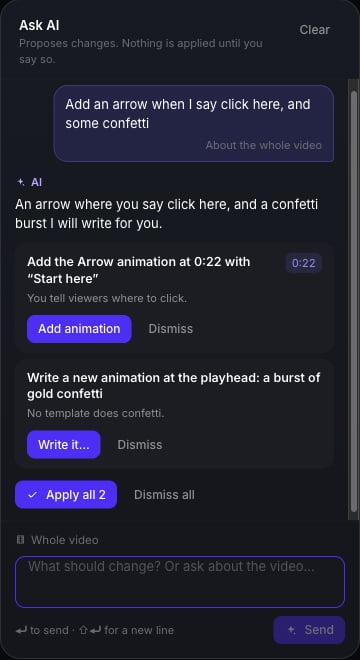
The AI answers with cards. Each card is one change, with a short reason.
4
Apply or skip
Press Apply on the cards you like, or Apply all. Press Dismiss to skip one.
Add an animation
Ask AI can add animations too. For example: “add a subscribe button saying Join when I say subscribe”, or “add an arrow when I say click here”.- If one of the ready-made animations fits, its card says Add animation. It goes in at the right moment with your words.
- If none fits (say, “some confetti at the end”), the card says Write it…. That opens the animation window, where your AI makes it and shows it to you before you add it.