

Add text
1
Go to the moment
Click the timeline where the text should appear.
2
Add text
Press T, or click the T at the bottom of the tools on the left of the preview. “Your text” appears on the video, and a text block appears on the timeline.
3
Type your words
In the panel on the right, type in Words. Add a Second line if you like.
4
Place it
Drag the text on the preview to move it.
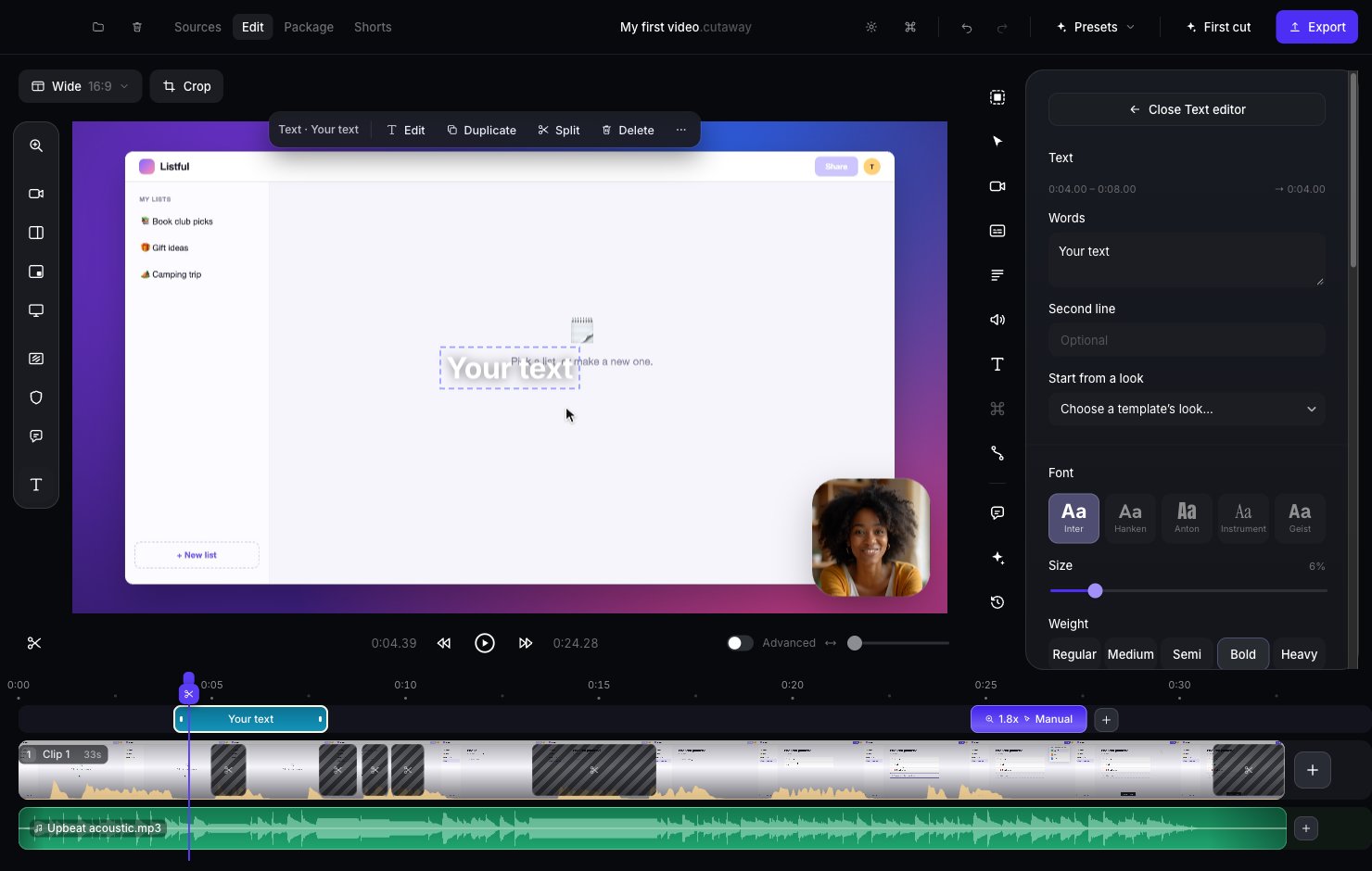
Make it look nice
In the text panel you can change the font, size, weight (how thick the letters are), color, and add a panel (a box behind the words), an outline or a shadow. You can also animate how the text comes and goes. Under Arrives and Leaves, pick Fade, Slide up, Pop or Typewriter (or None). Takes sets how long the animation lasts.Use a ready-made title
Click the T icon in the right sidebar to see ready-made designs. Click one to add it at the playhead.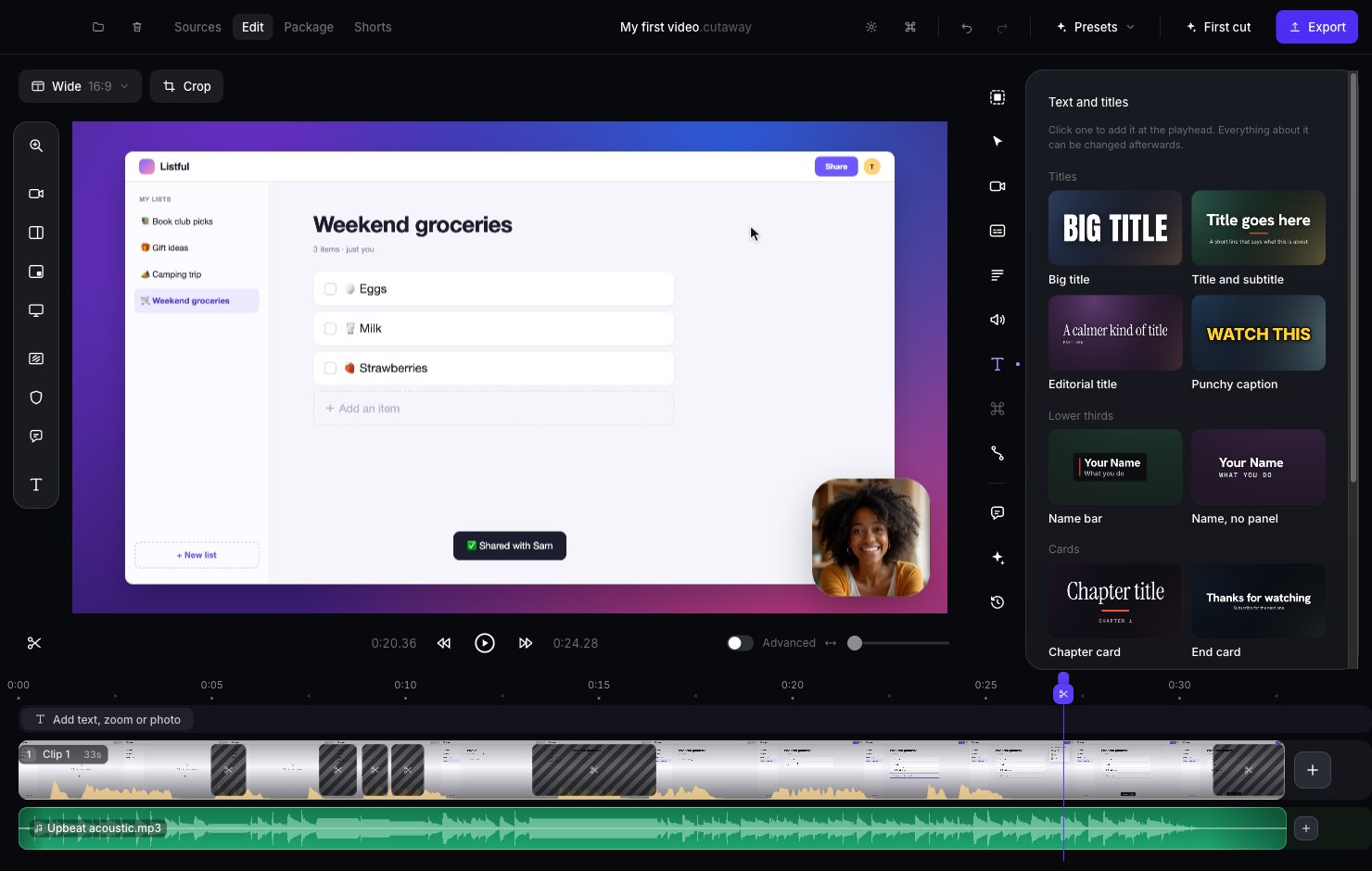
- Titles: big words for the start of your video, like Big title or Title and subtitle.
- Lower thirds: a name label near the bottom, like Name bar. Great when you introduce yourself.
- Cards: a full screen card, like a Chapter card or an End card (“Thanks for watching”).
- Labels: small words on screen, like a Pill label or a Typed line.