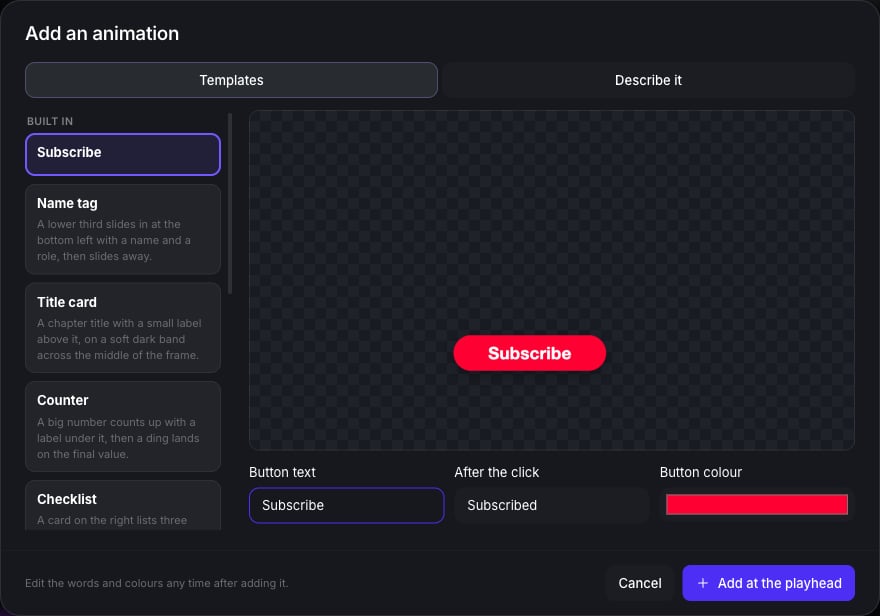
Add a ready-made animation
1
Put the playhead where it should start
2
Press + on the text & effects row and choose Animation…
The Templates tab opens.
3
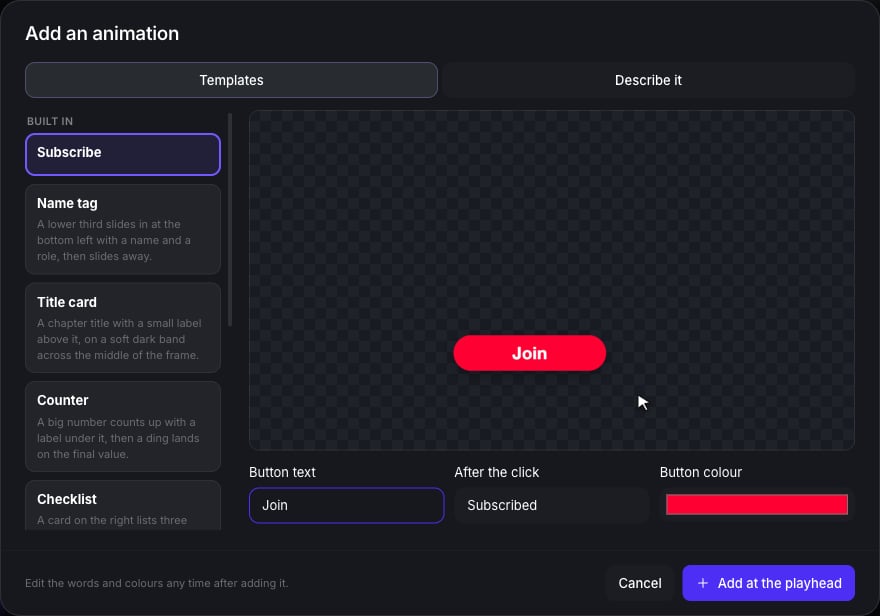
Pick one and type your words
The preview plays it with your words and colours.
4
Press Add at the playhead
It appears as a purple block on the text & effects row.
The templates
Point at something on screen
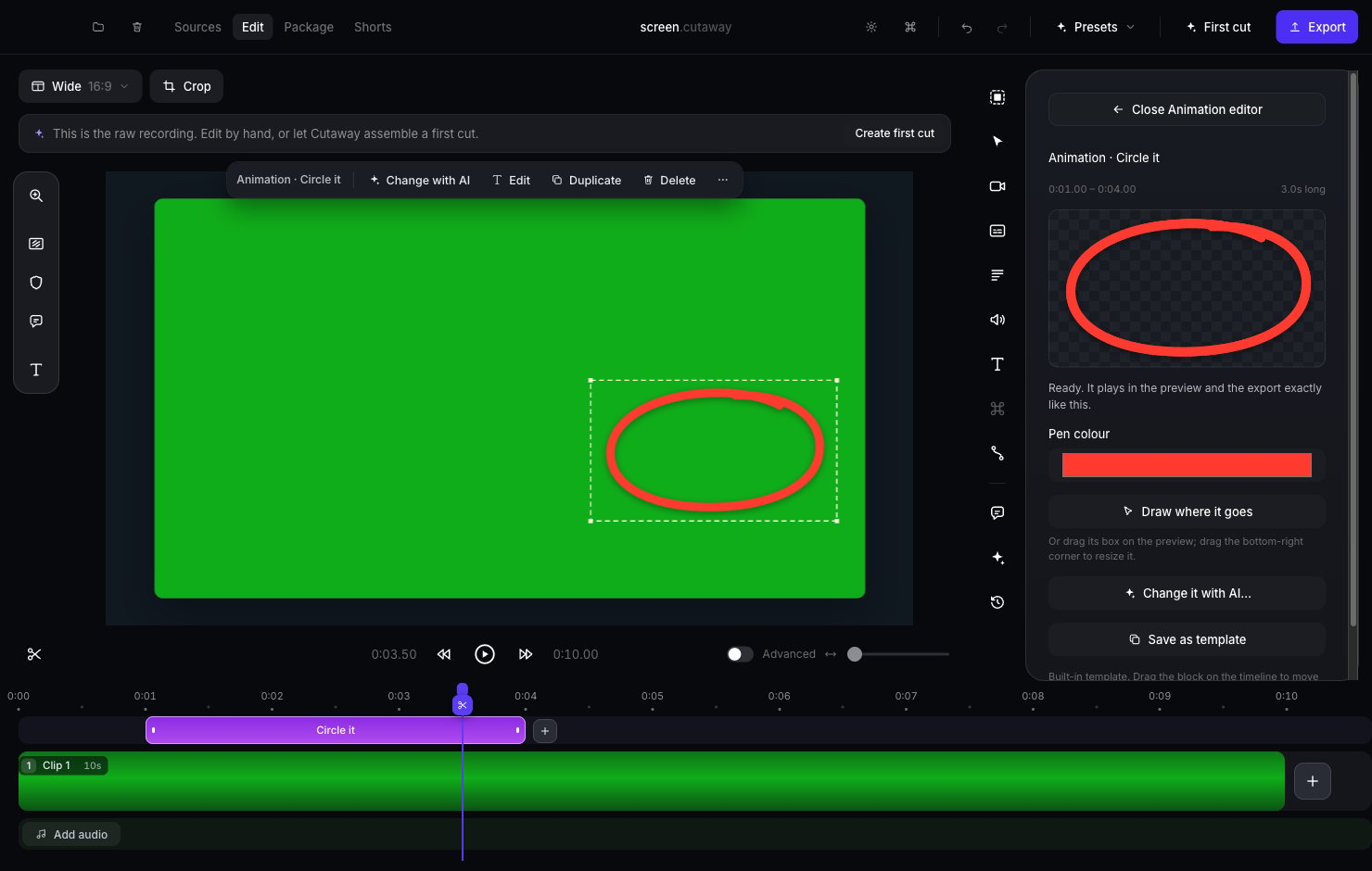
Highlighter, Circle it and Arrow go in a box that you place over the thing you’re talking about.- Move it: drag inside the box on the preview.
- Resize it: drag the box’s bottom-right corner.
- Draw a new box: select the animation, press Draw where it goes in the right panel, then drag on the preview.
Change the words, colours and timing
Click the animation’s block on the timeline. The right panel shows its words and colours; change them and the animation updates.- Drag the block to make it start at a different moment.
- Make the block longer to hold the last frame on screen.
- Delete removes it.
Describe your own
Want something there’s no template for, like confetti or a progress bar? Let AI make it.1
Press + on the text & effects row, choose Animation…, then Describe it
2
Type what you want
For example: “a burst of gold confetti from the centre”. You can also click one of the examples.
3
Press Make it
You’ll see each step as it happens: writing the animation, then testing it in Cutaway. If the test finds a problem, the AI fixes it on its own. It usually takes under a minute.
4
Look at it, then add it
Not quite right? Type a change (“make it slower”, “use our brand purple”) and press Change it. Happy? Press Add at the playhead.
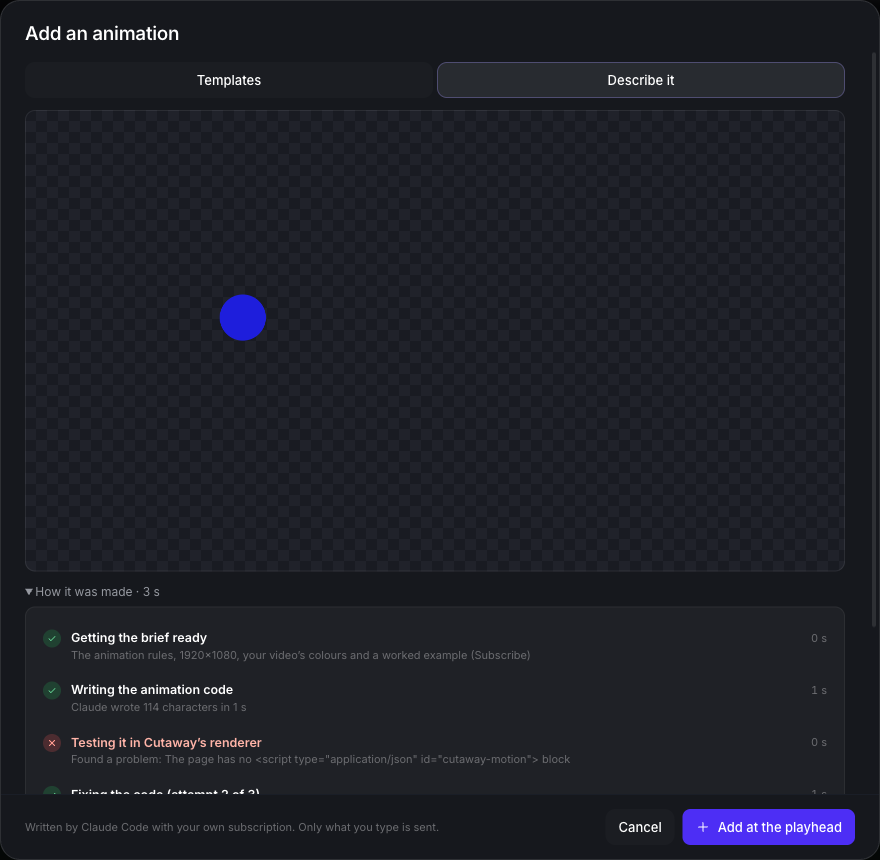
To change an animation you already added, select it and press Change it with AI….
Save your own templates
Made an animation you want to use again, for example your own name tag in your colours?- Select it on the timeline.
- In the right panel, press Save as template.