

Background
Cutaway puts your screen recording on a colorful background with rounded corners, so it looks polished. Click the Background icon in the right sidebar (or press Command + 1).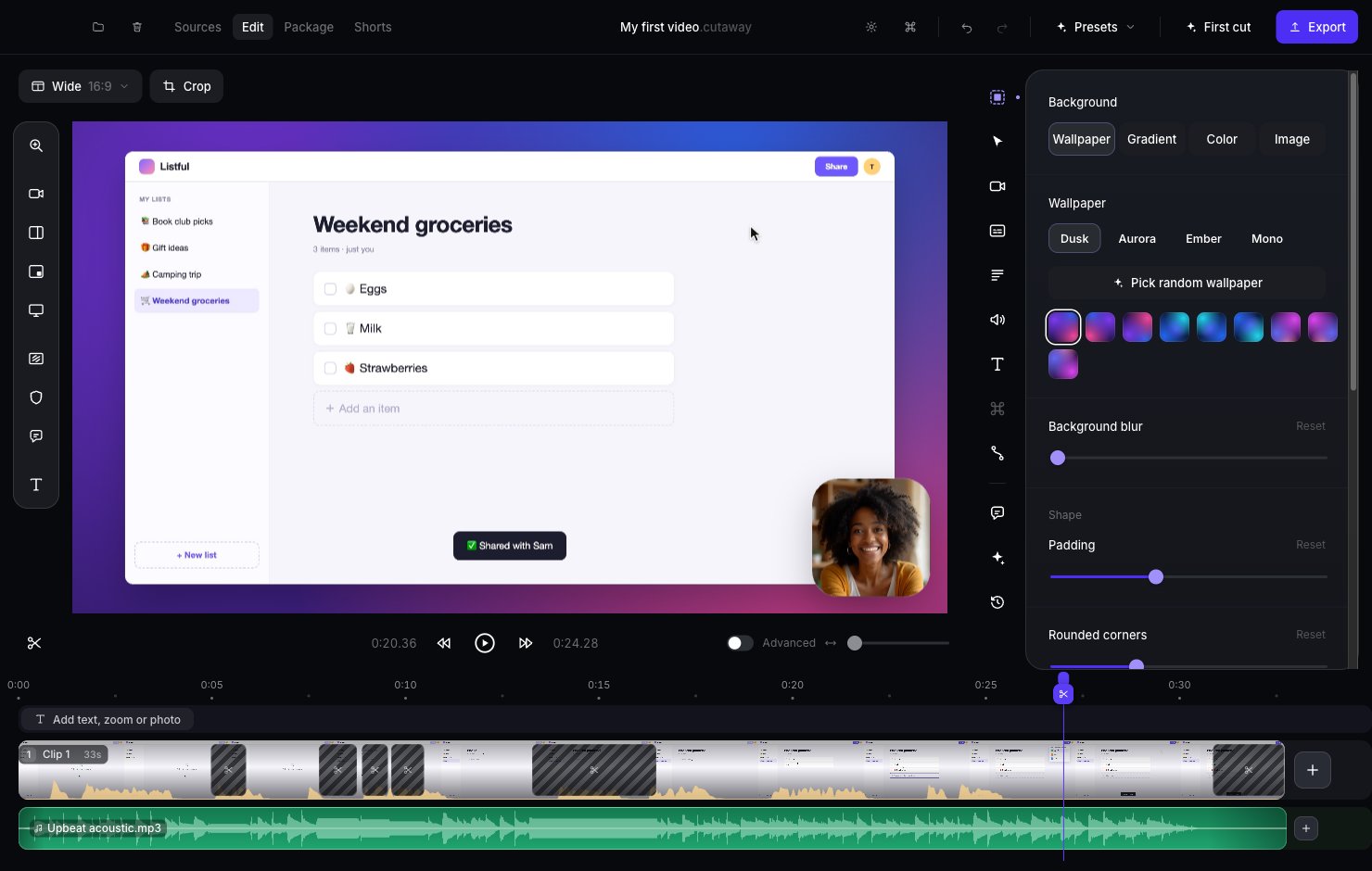
- Wallpaper: pick one of the ready-made pictures. Or press Pick random wallpaper.
- Gradient: a smooth blend between two colors. Drag Angle to turn the direction of the blend.
- Color: one plain color. Click Custom colour (the last box) to pick any color you like.
- Image: a picture from your Mac (press Choose an image…), or a free photo from the internet (see below).
- Background blur: makes the background softer.
- Padding: how much background shows around your screen. Less padding means a bigger screen.
- Rounded corners: how round the corners of your screen are.
- Shadow: a soft shadow under your screen.
- Inset: a thin light edge around your screen.
Find a background photo online
Pick Image, then use Search photos to find a free photo from Unsplash. Type a word like “mountains” and click a photo to use it.Search needs a free Unsplash key first. Get one at unsplash.com/developers, then paste it into Unsplash access key under Settings → Storage → Online background photos. Only your search words are sent to Unsplash. Nothing from your project is.
Screen look
The Screen look group at the bottom of the Background panel changes the colors and sharpness of your screen recording:- Screen LUT: a color recipe file from another app. Press Choose a .cube file… to pick one, then drag Strength to make it stronger or softer. The file is copied into your project.
- Screen sharpening: drag Amount to make your screen a little crisper.
Crop
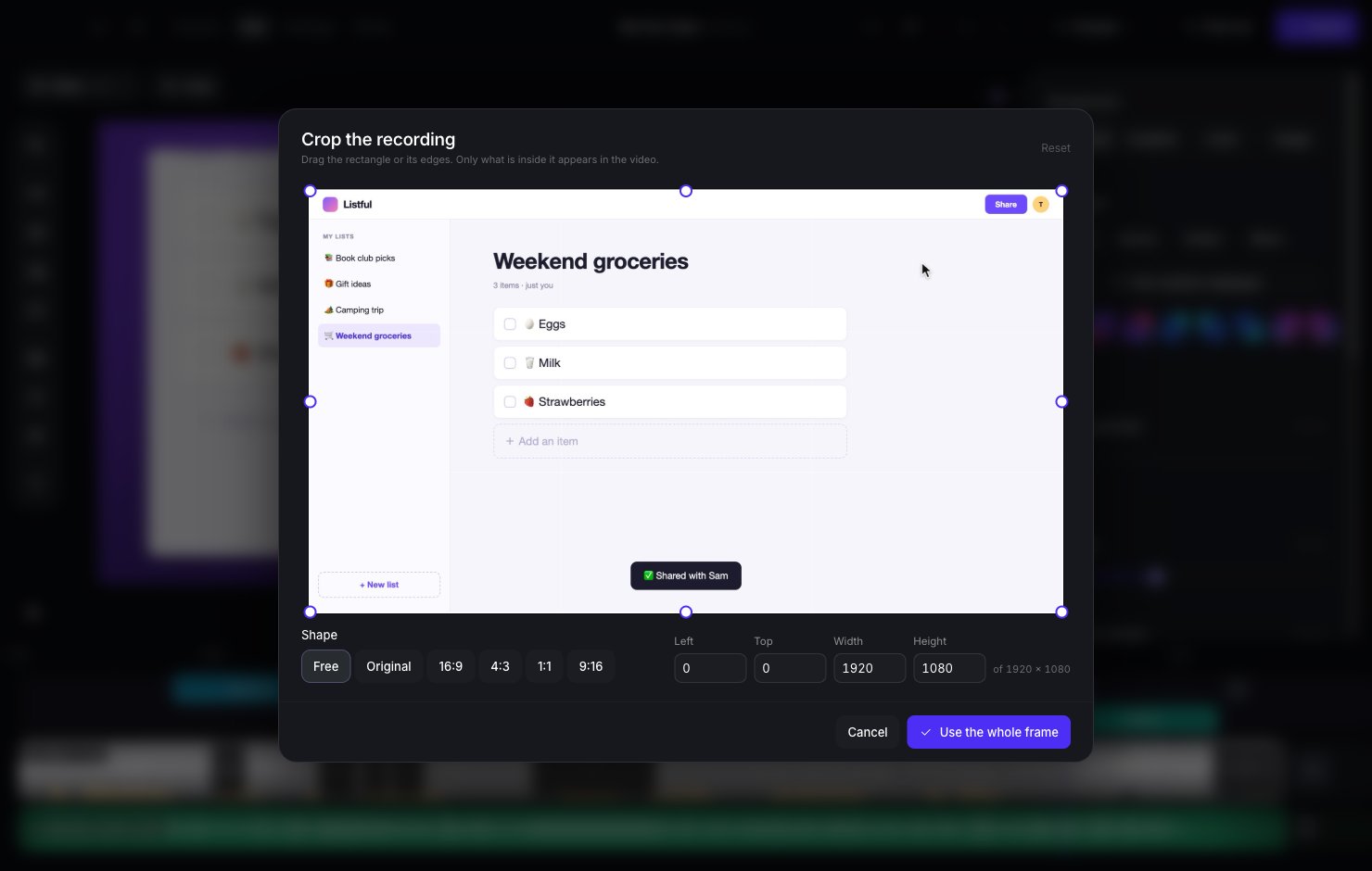
Cropping cuts away the edges of your recording, so only the part you want shows. For example, to hide your Mac’s menu bar.1
Press Crop
It’s above the top-left corner of the preview.
2
Drag the edges
Drag the corners and edges of the box. Only what’s inside the box will appear in the video.
3
Save
Press the purple button at the bottom to keep your crop.
Video shape
The button above the preview (it says Wide 16:9) sets the shape of your whole video.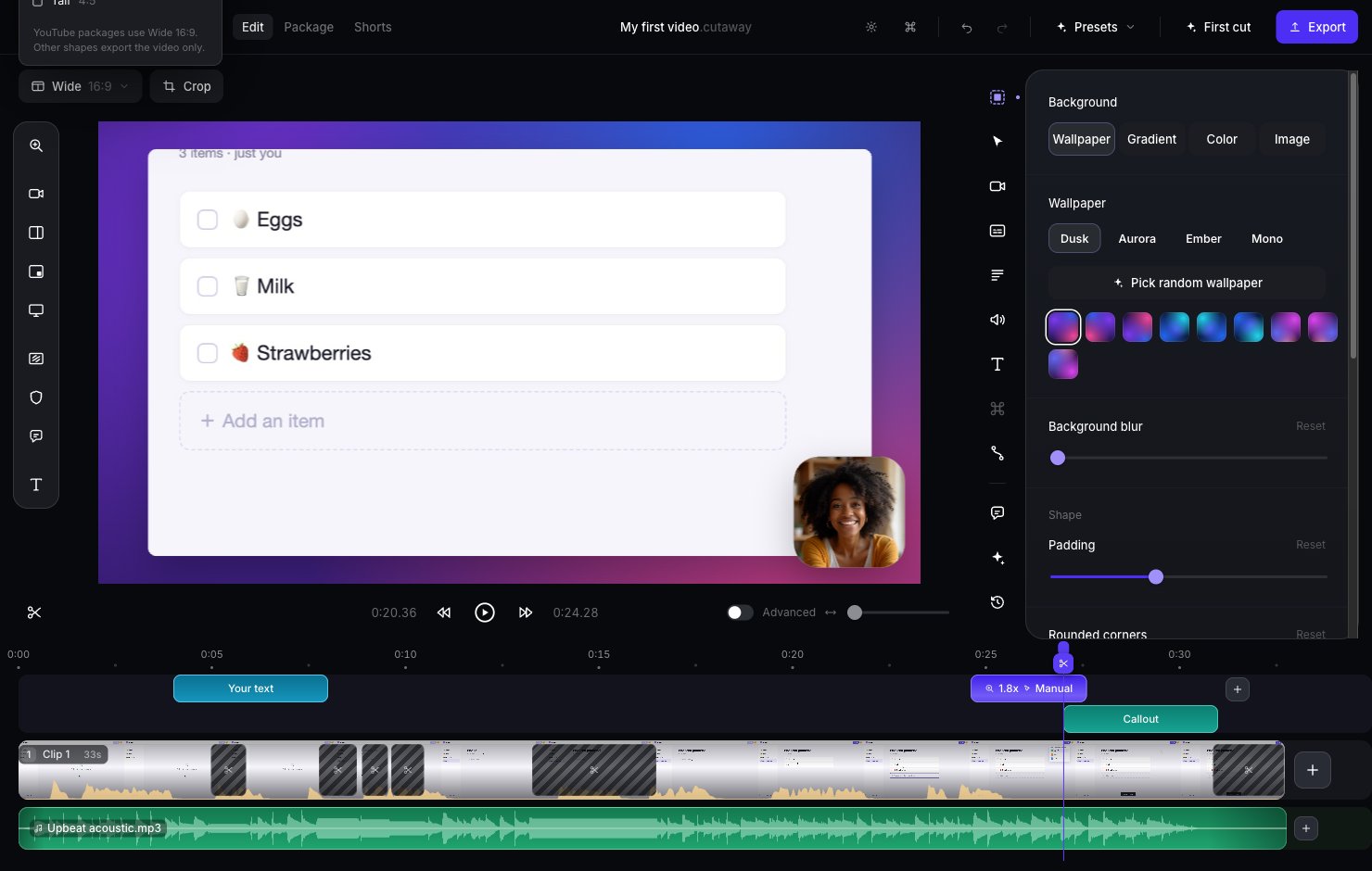
- Wide 16:9: the normal shape for YouTube and computer screens. Use this if you’re not sure.
- Vertical 9:16: tall, for phones (Shorts, TikTok, Reels).
- Square 1:1: for some social feeds.
- Classic 4:3 and Tall 4:5: other shapes some sites like.