

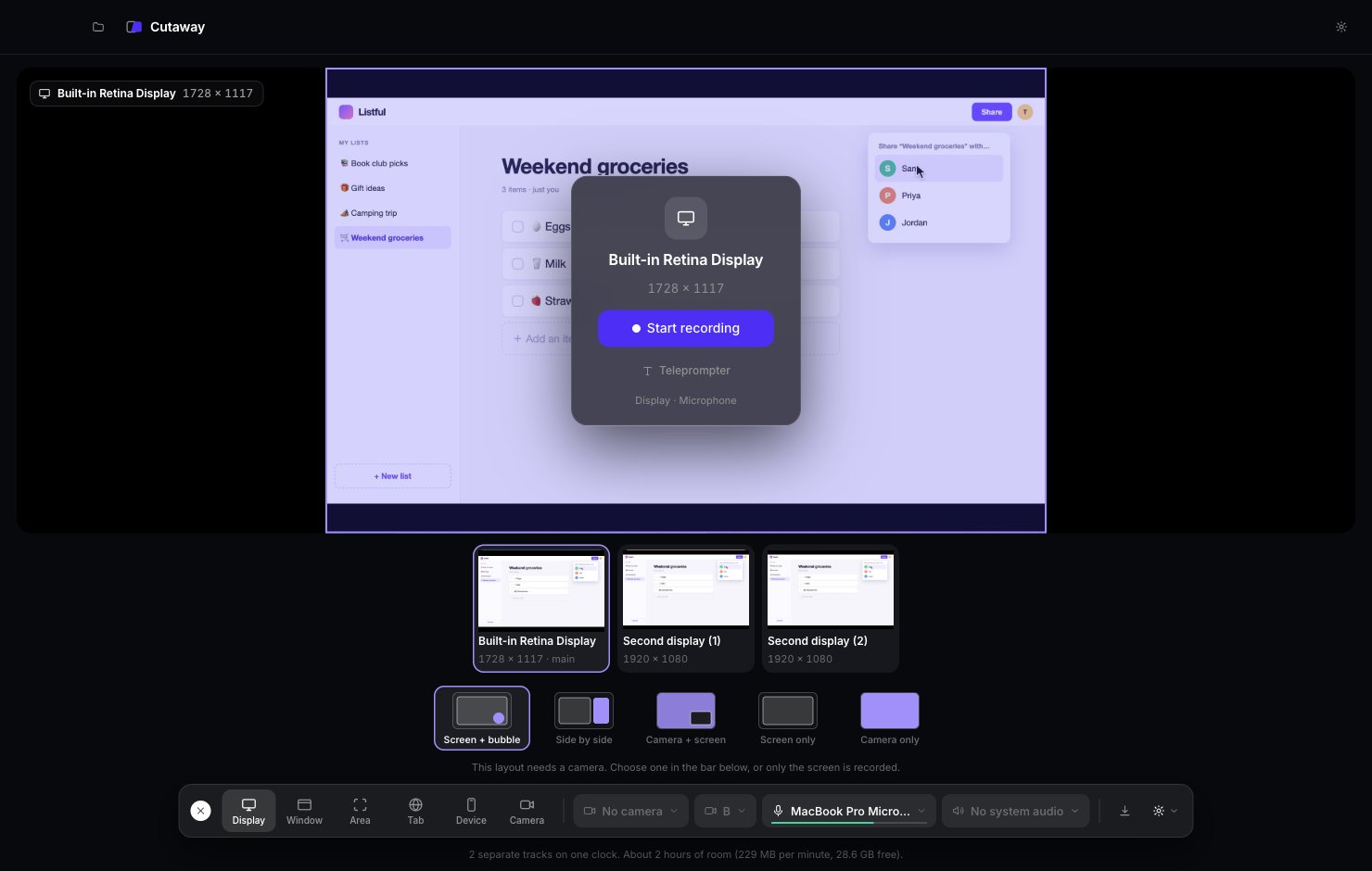
The five layouts
Layouts that show your face need a camera. If you see “This layout needs a camera”, click No camera in the bottom bar and pick one.
Use your iPhone as a camera
Your iPhone can be your camera. It usually looks better than a laptop camera.1
Get ready
Sign in to the same Apple Account on your iPhone and Mac. Turn on Wi-Fi and Bluetooth on both.
2
Place your iPhone
Lock your iPhone and put it near your Mac, on a stand or mount. You can also plug it in with a cable.
3
Pick it in Cutaway
Click the camera menu in the bottom bar. Your iPhone shows up as iPhone. Pick it.
Two cameras
You can record two camera angles at once. For example, your Mac’s camera from the front, and your iPhone from the side.- Pick your first camera in the camera menu (Camera A).
- Pick your second camera in the B menu (Camera B).