

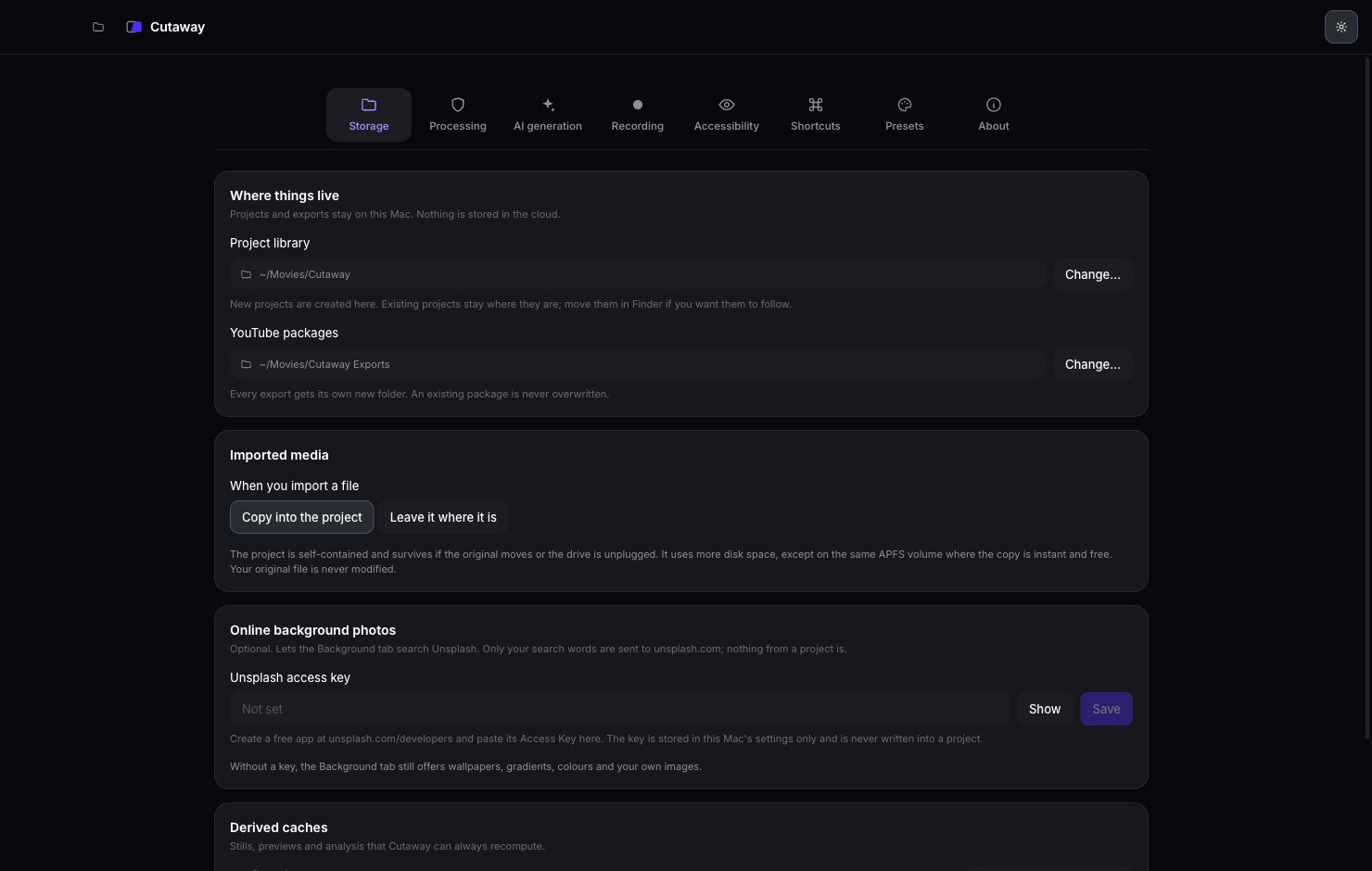
Where your work is saved
- Projects: in the Cutaway folder inside your Movies folder.
- Exports: in the Cutaway Exports folder inside your Movies folder.
Changing Project library only affects new projects. Projects you already have stay where they are.
When you import a file
Under Storage → Imported media:- Copy into the project (recommended): your project keeps working even if you move or delete the original file. Uses more space.
- Leave it where it is: saves space, but the project needs the original file to stay put.
Online background photos
Also under Storage, Online background photos lets the Background tab search Unsplash for photos. It’s optional. You need a free key from Unsplash: paste it into Unsplash access key and press Save. Only your search words are sent to Unsplash.Free up space
Under Storage → Derived caches, you can see how much space a project’s stills, previews and analysis use. Press Clear derived caches to delete them. Your recordings, edit and thumbnails are safe. Cutaway makes the caches again when it needs them.Processing
Processing is where you set up AI and speech-to-text.- AI on this Mac: choose which AI app Cutaway uses: Automatic, Claude Code or Codex. You can also set which model each one uses, and where it’s installed. Most people leave these as they are. See Set up AI.
- Playbooks: the guidance Cutaway gives the AI for Editing, Titles and Thumbnails. Press Read playbook to see it. Type in Add your own notes (for example, “always sentence case”) and press Save notes.
- What leaves this Mac: exactly what is sent to the AI company, what is never sent, and how long it’s kept.
- Transcription: how your speech is turned into text. This always happens on your Mac. Pick an Engine: Automatic, Apple on-device speech or Whisper model file. Automatic is best for most people. Set Spoken language to the language you speak in your videos.
- Analytics: Cutaway collects no analytics. There’s nothing to turn off.
AI tools
AI tools lets Claude Code or Codex make videos in Cutaway for you.- Turn on Let AI tools control Cutaway.
- Press Connect next to Claude Code or Codex. If it’s already connected, the button says Connect again.
Recording
- Countdown: how long Cutaway waits after you press record: None, 3 seconds, 5 seconds or 10 seconds.
- Global shortcut: Control + Option + Command + R starts or stops a recording from any app.
- What a recording keeps: a reminder of what Cutaway saves. For example, your screen, cameras and sound are saved as separate files, so you can edit each one.
Accessibility
- Reduce motion in the app: turns off movement in Cutaway’s own screens. Your video’s zooms and transitions don’t change.
- Transcript text size: makes the words in the Transcript panel bigger or smaller.
Shortcuts
Click any shortcut, then press the new keys. See Keyboard shortcuts.Presets
A preset saves a look: background, frame, cursor, camera and caption style, motion and pacing. It never saves your cuts.- Open a project you like the look of.
- Under Save the current look, type a name and press Save preset.
- Apply gives the open project that look.
- Make default uses it for every new project.
- The trash button deletes the preset.