

- removes long pauses where nothing happens,
- removes filler words like “um” and “uh”,
- switches between your screen and your face at good moments,
- adds zooms when you show something small.
Make a first cut
1
Answer a few questions (or don't)
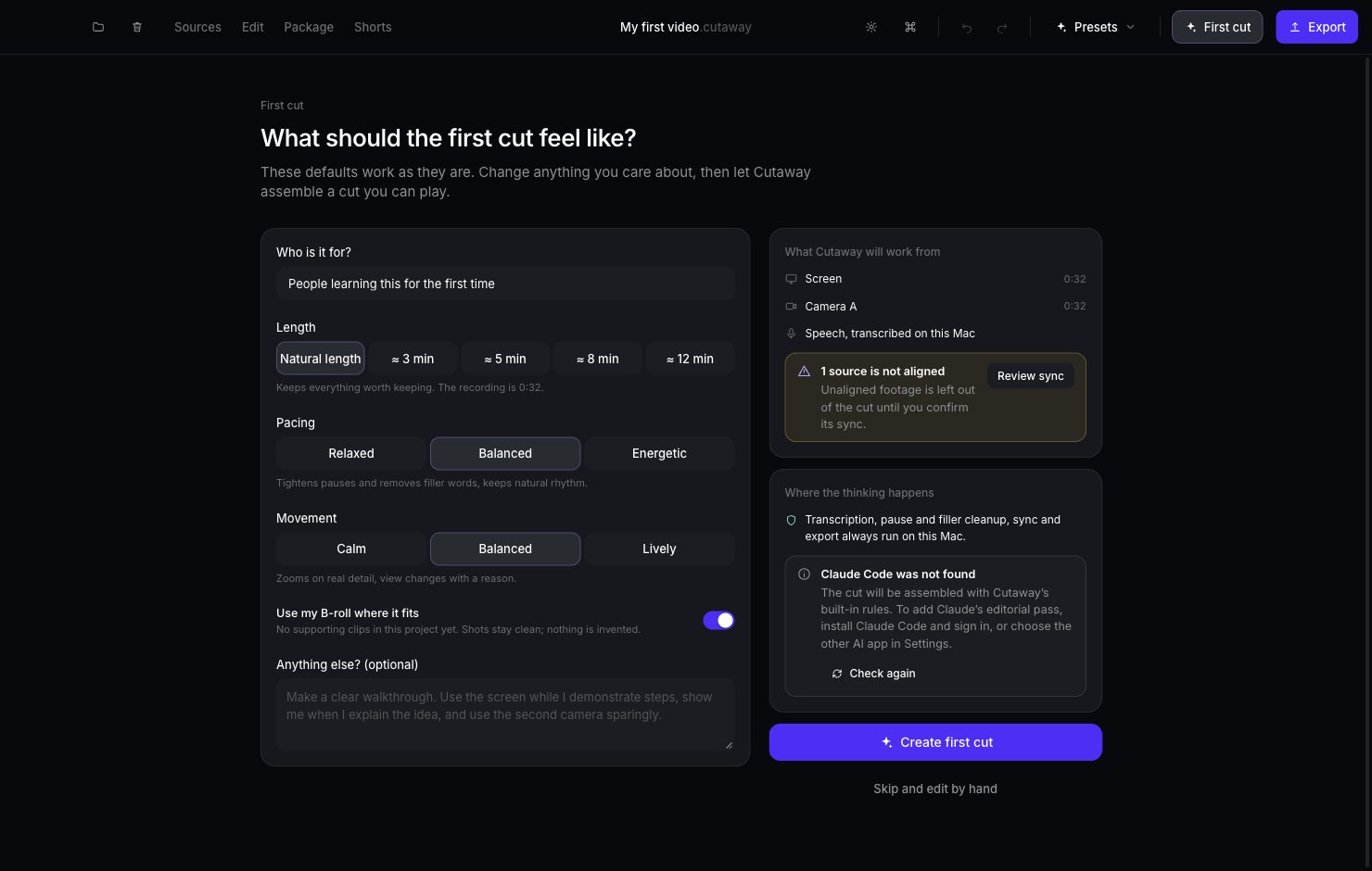
The choices already selected work well. Change only what you care about:
- Who is it for? For example, “people learning this for the first time”.
- Length: keep Natural length, or aim for about 3, 5, 8 or 12 minutes.
- Pacing: Balanced is the default. Relaxed keeps more pauses. Energetic is snappier.
- Movement: Balanced is the default. Calm means fewer zooms. Lively means more.
- Use my B-roll where it fits: on by default. If you added pictures or videos to the project, the first cut can show them over your footage (this needs the AI helpers). Your voice keeps playing underneath. See B-roll.
- Anything else? Write any wishes in your own words. This is optional.
2
Press Create first cut
Cutaway works for a little while, then opens your video in the editor.
Prefer to do it all yourself? Press Skip and edit by hand.